
Benji Beagle™ User Manual
Lost it? Benji fetches it.
Version 1.0 · Open Benji at armchairworks.com/benji/app
Benji is a searchable list of everything you keep in your home. You tell Benji what an item is and exactly where you put it. Later, when you're wondering where the old picture frames went, you type "frames" and Benji tells you: 12 Oak Street › Garage › Shelf against the north wall, with a photo if you took one.
This manual explains every part of Benji, in the order you'll use it. You don't need to read it all at once: sections 1 to 6 get you going, and the rest is there when you need it.
1. What you need
- A web browser. A current version of Chrome, Microsoft Edge, Safari or Firefox, on a computer, tablet or phone. Nothing to install.
- An internet connection to open Benji and to save your list.
- Your access key, which came with your purchase. It looks like BENJI-XXXX-XXXX-XXXX-XXXX.
- A free Google account or Dropbox account to keep your list in. If you use Gmail, you already have Google Drive.
2. Opening and unlocking Benji
- Go to armchairworks.com/benji/app. The first time, Benji takes a few seconds to wake up while it loads; after that it opens faster.
- Type your access key in the box and tap Unlock Benji.
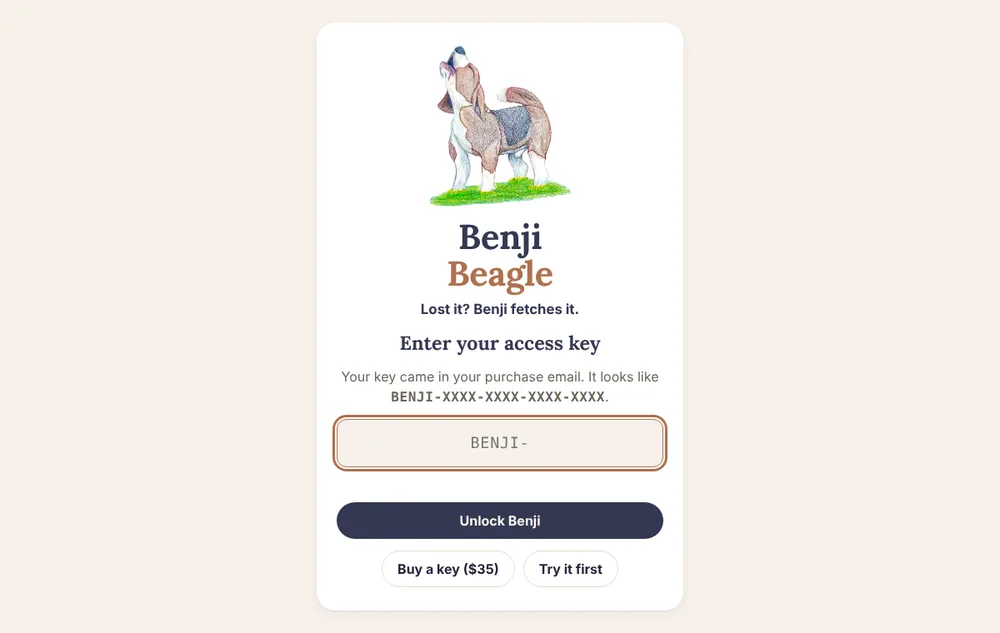
You enter your key once on each computer, tablet or phone you use. Benji remembers it on that device.
Try it first. Before you buy, you can tap Try it first to explore Benji in "try-it-out mode." Your test list is saved only in that web browser. When you buy, you can bring that list into Google Drive or Dropbox with Bring in a backup.
3. Choosing where your list lives
After you unlock Benji, it asks where to keep your list. Benji keeps two things there: Benji.txt (your list) and a BenjiPics folder (your photos). They're saved in your own account; Benji's website never stores them.
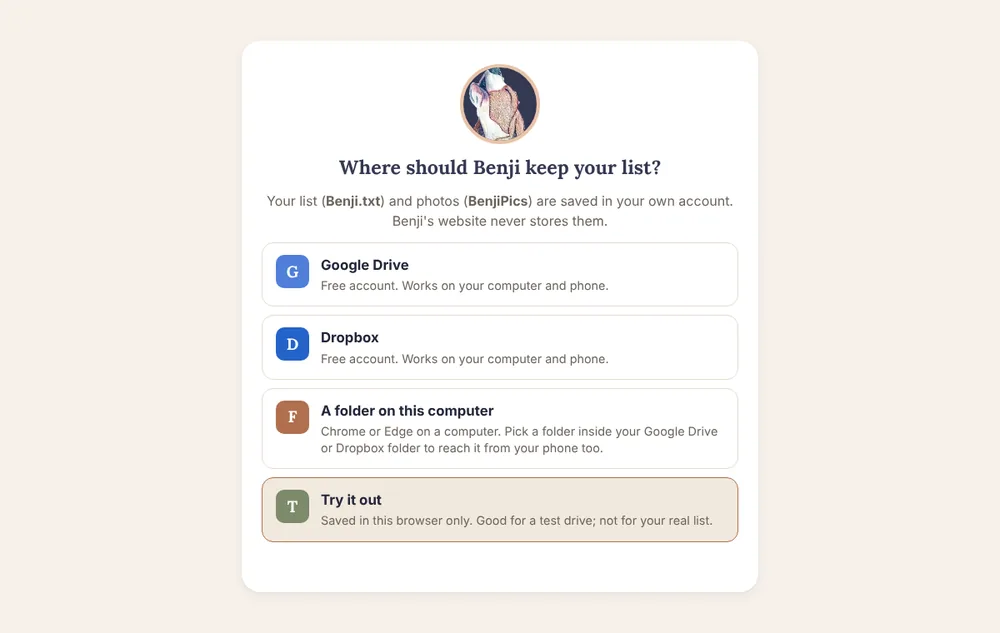
| Choice | Best for | Where your files go |
|---|---|---|
| Google Drive | Anyone with a Google or Gmail account. Works on computers and phones. | A Benji Beagle folder in your Google Drive. You can move that folder anywhere in your Drive. |
| Dropbox | Dropbox users. Works on computers and phones. | Dropbox › Apps › Benji Beagle. |
| A folder on this computer | Chrome or Edge on a computer only. | Any folder you pick. Pick one inside your Google Drive or Dropbox folder and it syncs to your phone too. |
| Try it out | A test drive. | Inside this web browser only. Not backed up, not on your other devices. |
Connecting Google Drive
- Tap Google Drive. A small Google window opens.
- Choose your Google account and tap Allow. Benji asks only to "see, edit, create and delete only the specific Google Drive files you use with this app," which means it can see the files it creates and nothing else in your Drive.
- Benji creates its folder and opens your (empty) list.
Each time you come back to Benji, Google asks you to confirm with one tap: you'll see Welcome back and an Open my Benji list button. That's Google's rule for keeping your account safe.
Connecting Dropbox
- Tap Dropbox. Benji takes you to Dropbox's sign-in page.
- Sign in and tap Allow. Dropbox brings you straight back to Benji.
Benji stays connected to Dropbox, so next time it opens your list on its own.
Connecting a folder on this computer
Tap A folder on this computer, choose or create a folder, and allow Benji to view and save files there. On later visits the browser may ask again; tap Open my Benji list and allow.
4. A quick tour of the screen
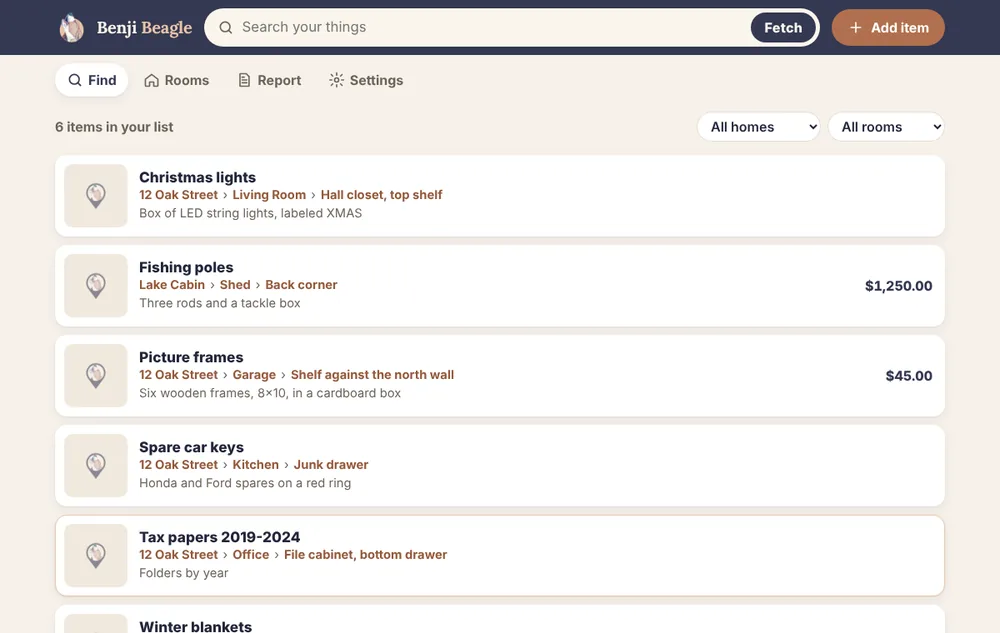
- The search box and Fetch button at the top: type what you're looking for.
- Add item (the + button on phones): add something new.
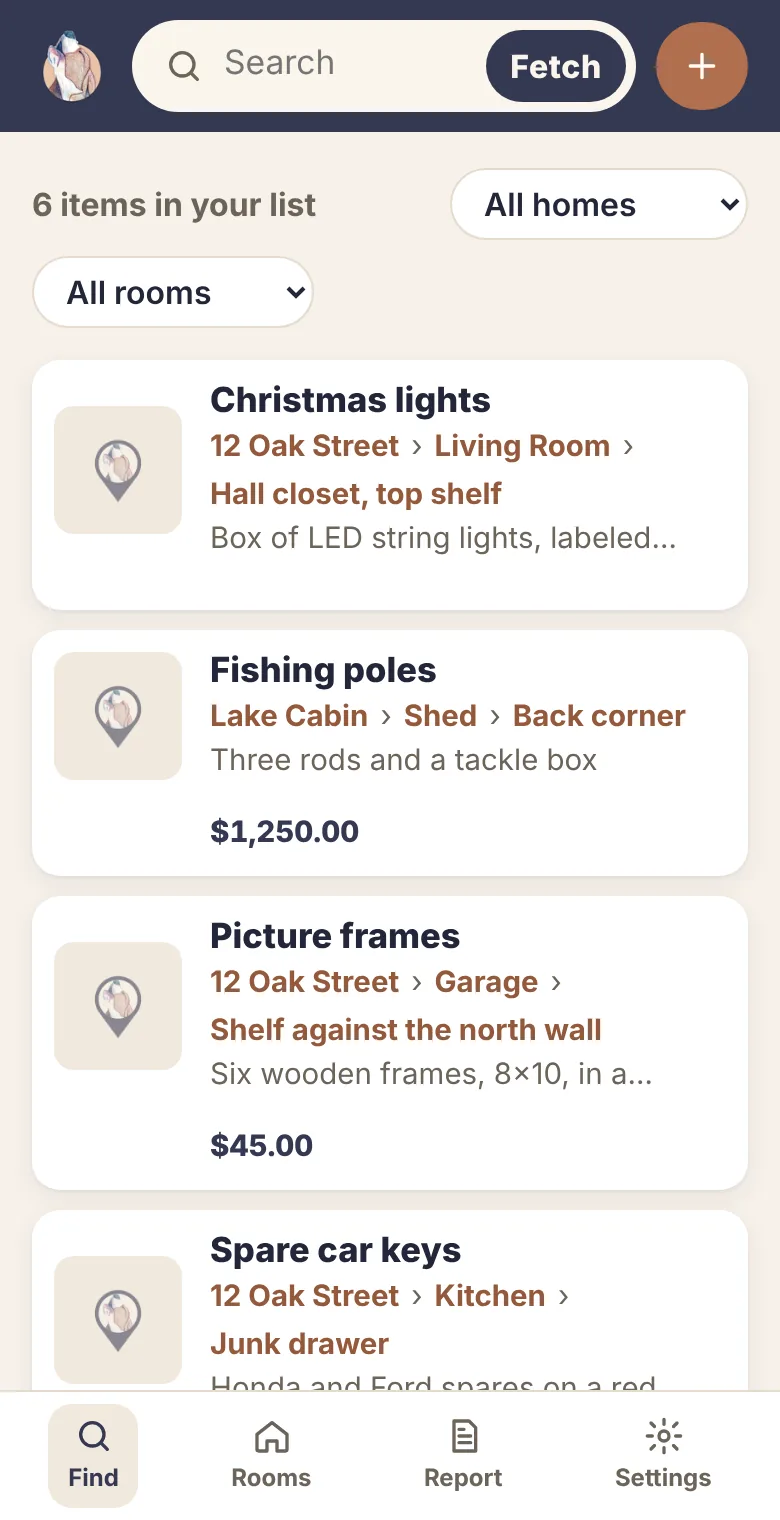
- Four tabs: Find (your list and search results), Rooms (everything by home, room and location), Report (totals for insurance) and Settings. On a phone, the tabs are along the bottom.
- The little status tag under the top bar shows Saving… and then Saved each time Benji saves.
5. Adding items
Tap Add item (or + on a phone) and fill in what you know. Only Item is required.
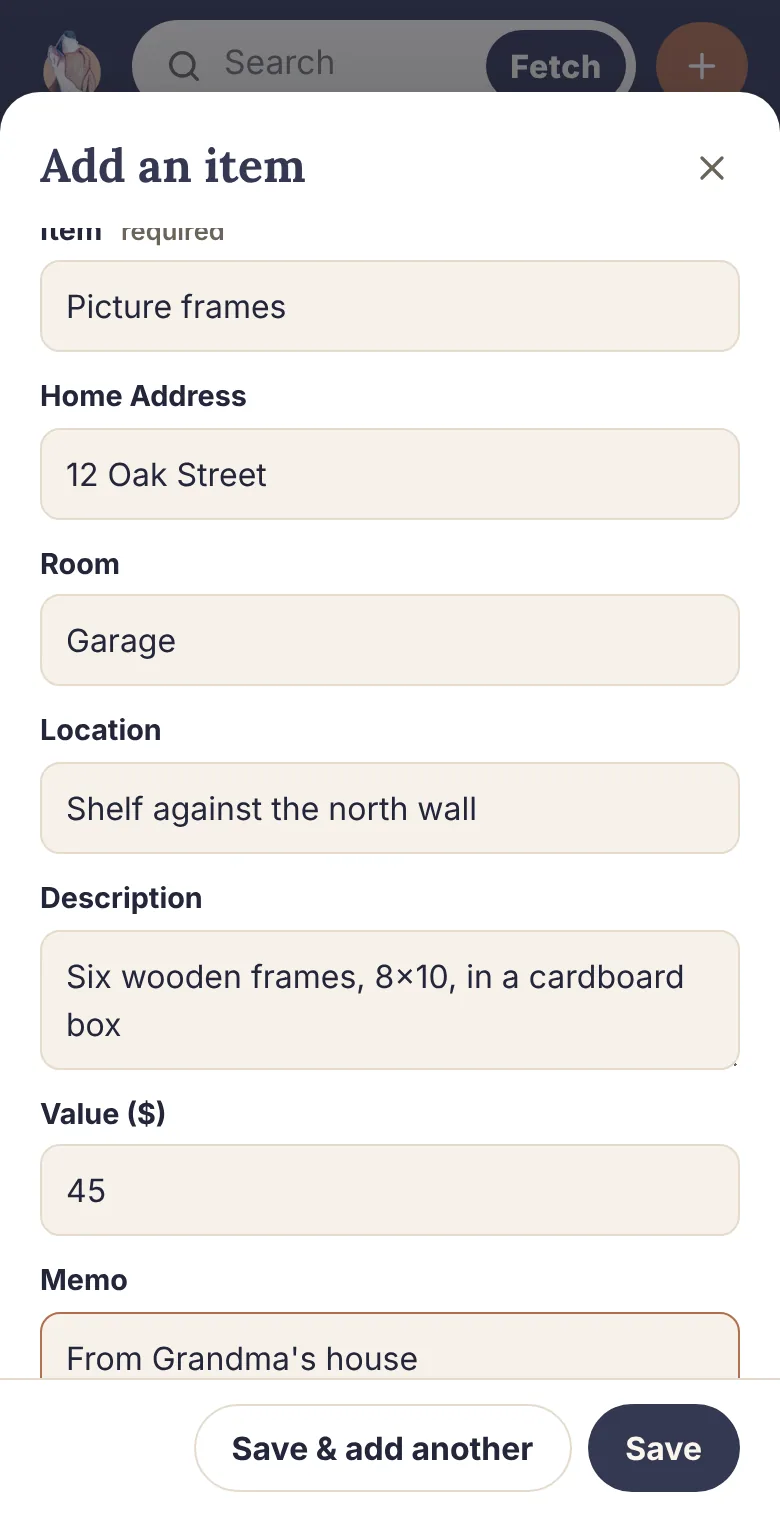
| Box | What to put in it |
|---|---|
| Item | What it is: "Picture frames," "Winter blankets," "Spare car keys." Use the words you'd search for later. |
| Home Address | Which home it's in: "12 Oak Street," "Lake Cabin," "Storage unit." Useful if you have more than one place. |
| Room | "Garage," "Bedroom 1," "Shed," "Attic." |
| Location | Exactly where in the room: "Closet," "Nightstand," "Under the bed," "Shelf against the north wall." |
| Description | What it looks like, how many, what it's in: "Six wooden frames in a cardboard box." |
| Value ($) | What it's worth, for your insurance report. Type 45, 45.00 or $1,250.50; any of these work. |
| Memo | Anything else: serial numbers, where the receipt is, who gave it to you. |
As you type in Home Address, Room and Location, Benji suggests names you've used before, plus common room and location names. Picking a suggestion keeps your names consistent, so "Garage" doesn't become "garage" and "Grage."
Adding photos
Under Photos, tap Take photo to use your phone's camera, or Choose photos to pick pictures you already have (you can pick several at once). Tap the × on a photo to remove it.
Saving
- Save saves the item and closes the form.
- Save & add another saves it and opens a fresh form with the same home, room and location already filled in. This is the fastest way to go through a closet or a room.
New items also start with the home, room and location you used last, so you only change what's different.
6. Finding things
Type what you're looking for in the search box. Results appear as you type, best matches first. Tap Fetch or press Enter, and when Benji finds something, he howls. (You can turn the sound off.)
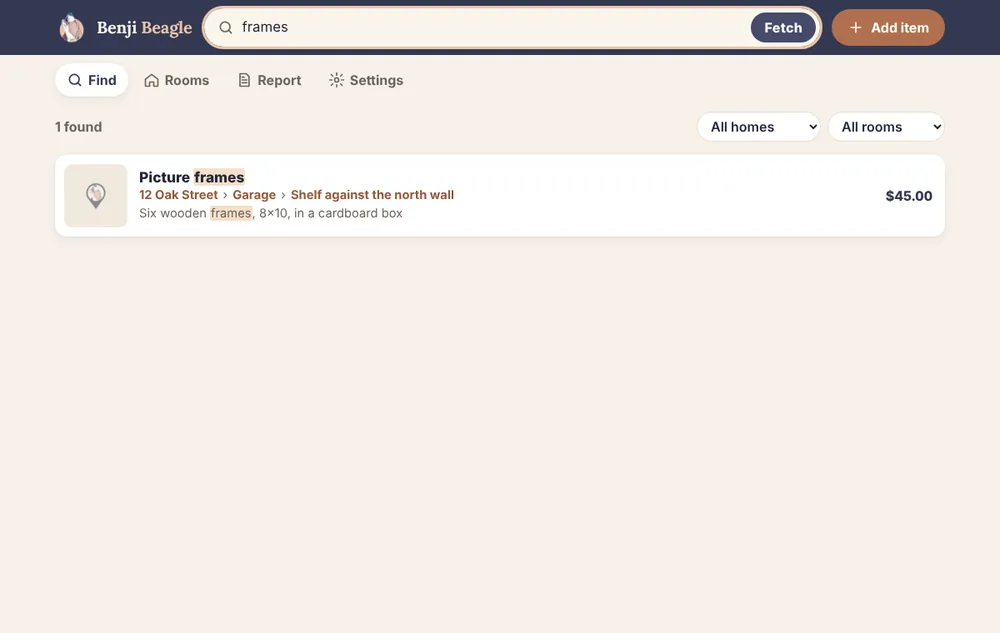
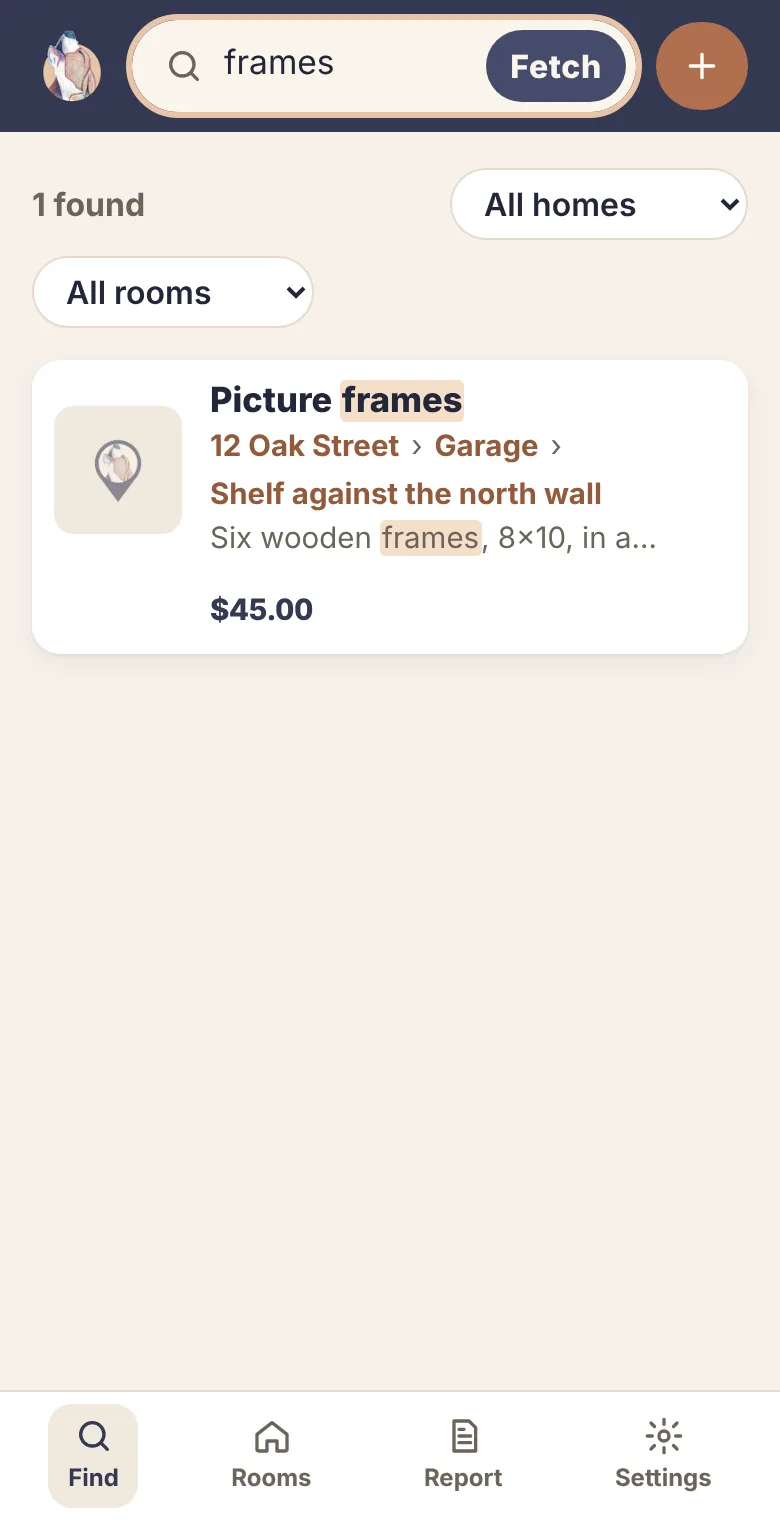
How Benji searches:
- Benji looks in every box: item, description, home, room, location, memo, and even the value.
- Every word you type must match. "Lights closet" finds the Christmas lights in the hall closet, but not every light or every closet. If you get nothing, try fewer words.
- Small typos are fine. "Blankts" still finds Winter blankets. Plurals don't matter either: "frame" finds "frames."
- With nothing typed, the Find tab shows your whole list, A to Z.
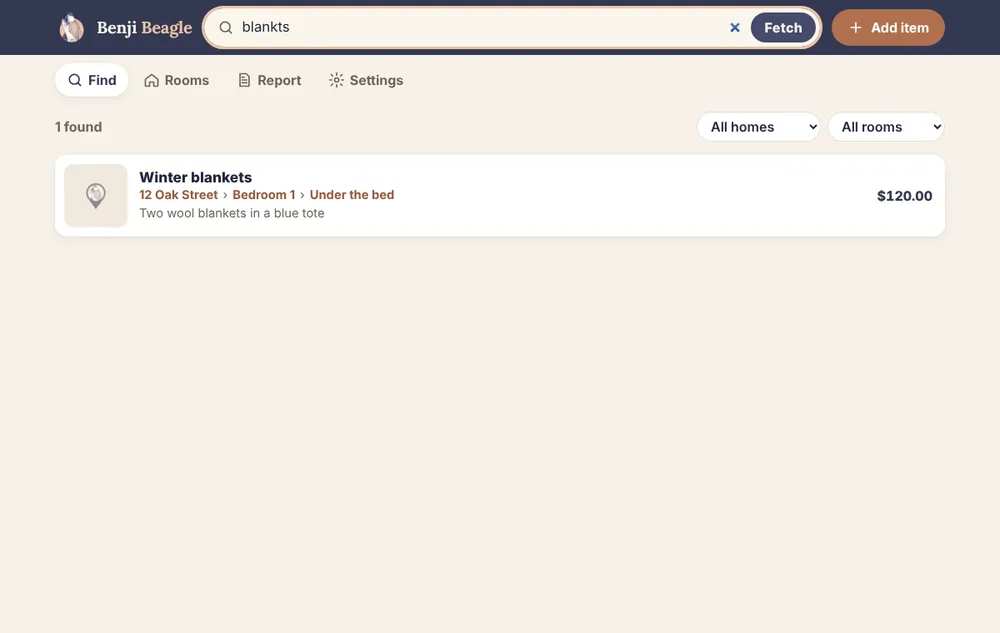
Narrowing the list. Use the All homes and All rooms menus to show just one home or room. Active filters appear as tags, like Room: Garage; tap the × on a tag to remove it.
Long lists show the first 120 results; tap Show more for the rest. On a computer, press / to jump to the search box.
If Benji can't find anything, he says so: "Benji sniffed everywhere." Check the spelling, use fewer words, or clear the filters.
7. Item details, editing and deleting
Tap any item to open its details. At the top, Benji found it here shows exactly where it is, followed by its photos and the rest of what you wrote. Tap Close, or tap outside the box, to go back.
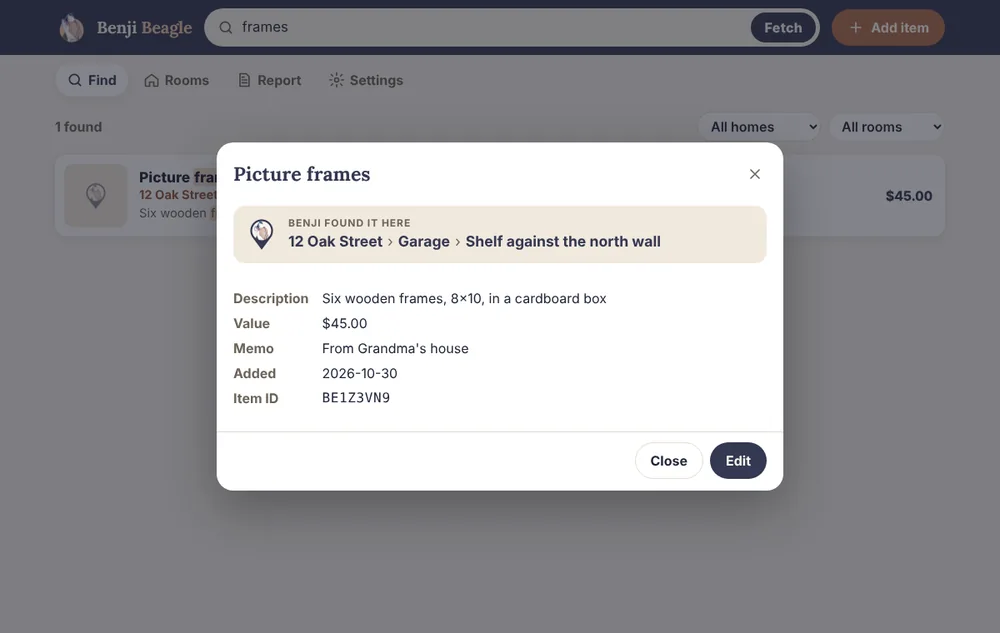
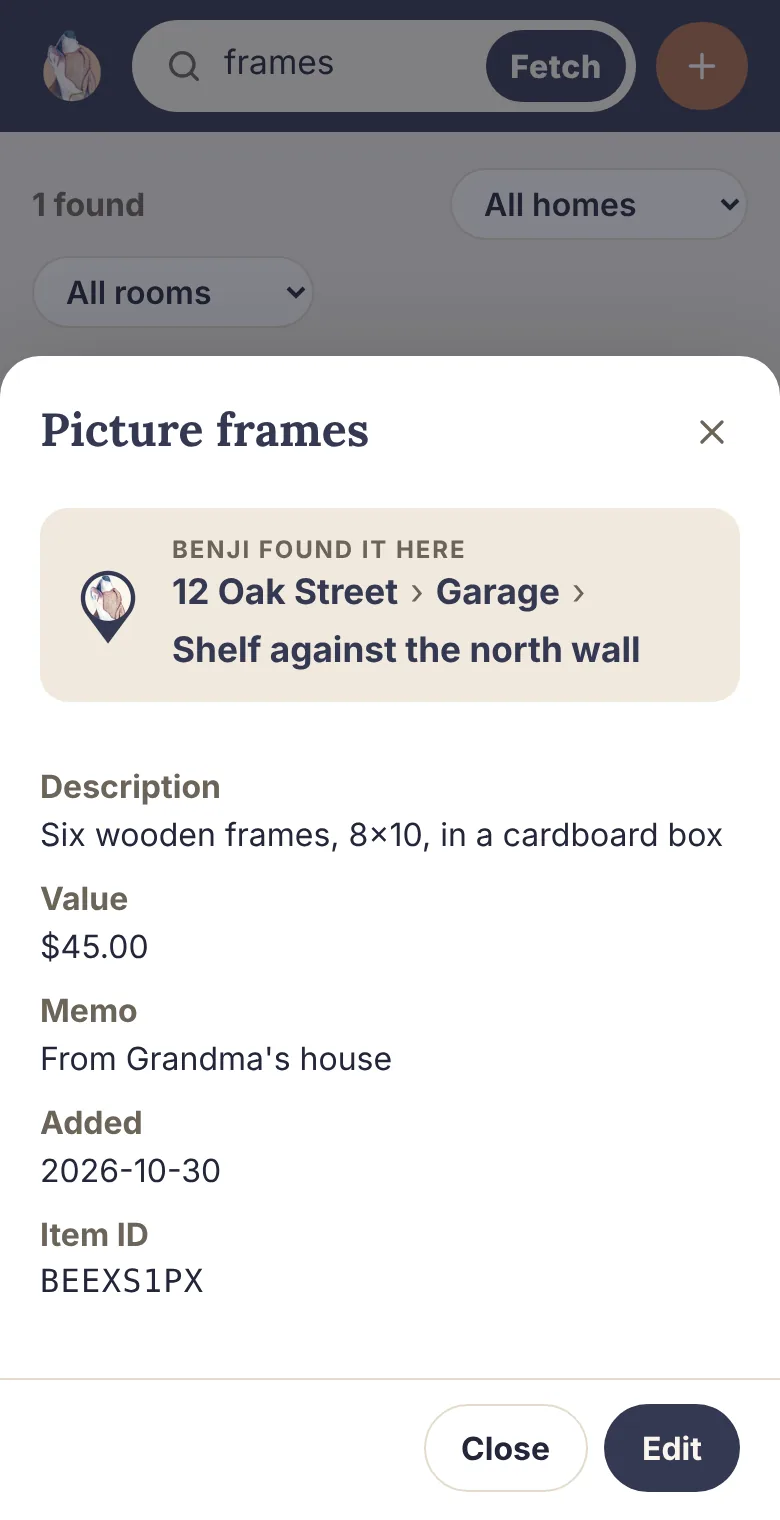
- To change an item, open it and tap Edit. Change anything, add or remove photos, and tap Save. Moved something? Just change its room or location.
- To delete an item, open it, tap Edit, then Delete, and confirm. Its photos are removed too. (In Google Drive, deleted photos go to Drive's trash, so you can recover them for a while.)
8. The Rooms view
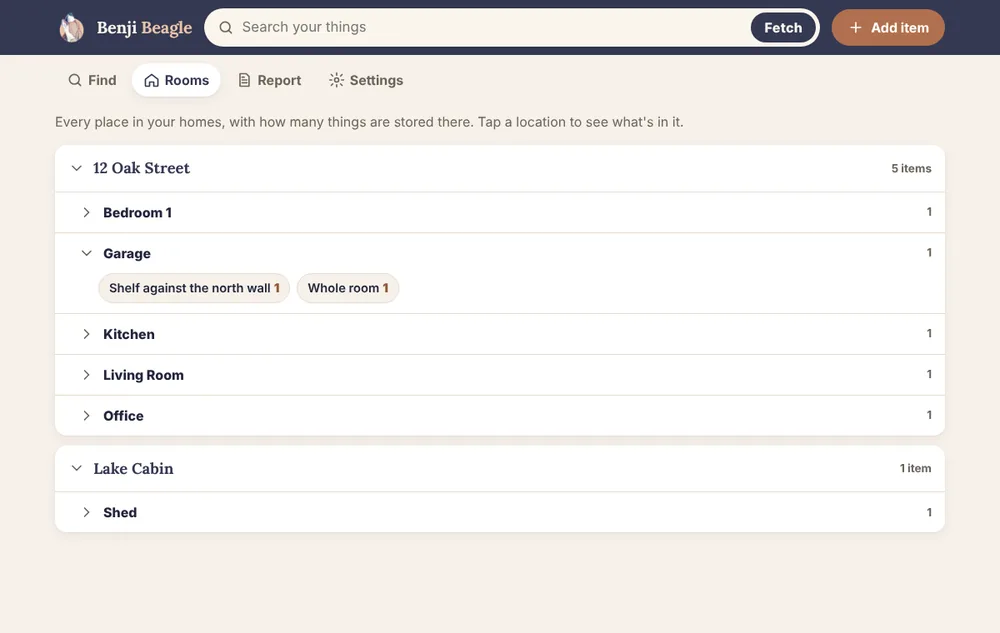
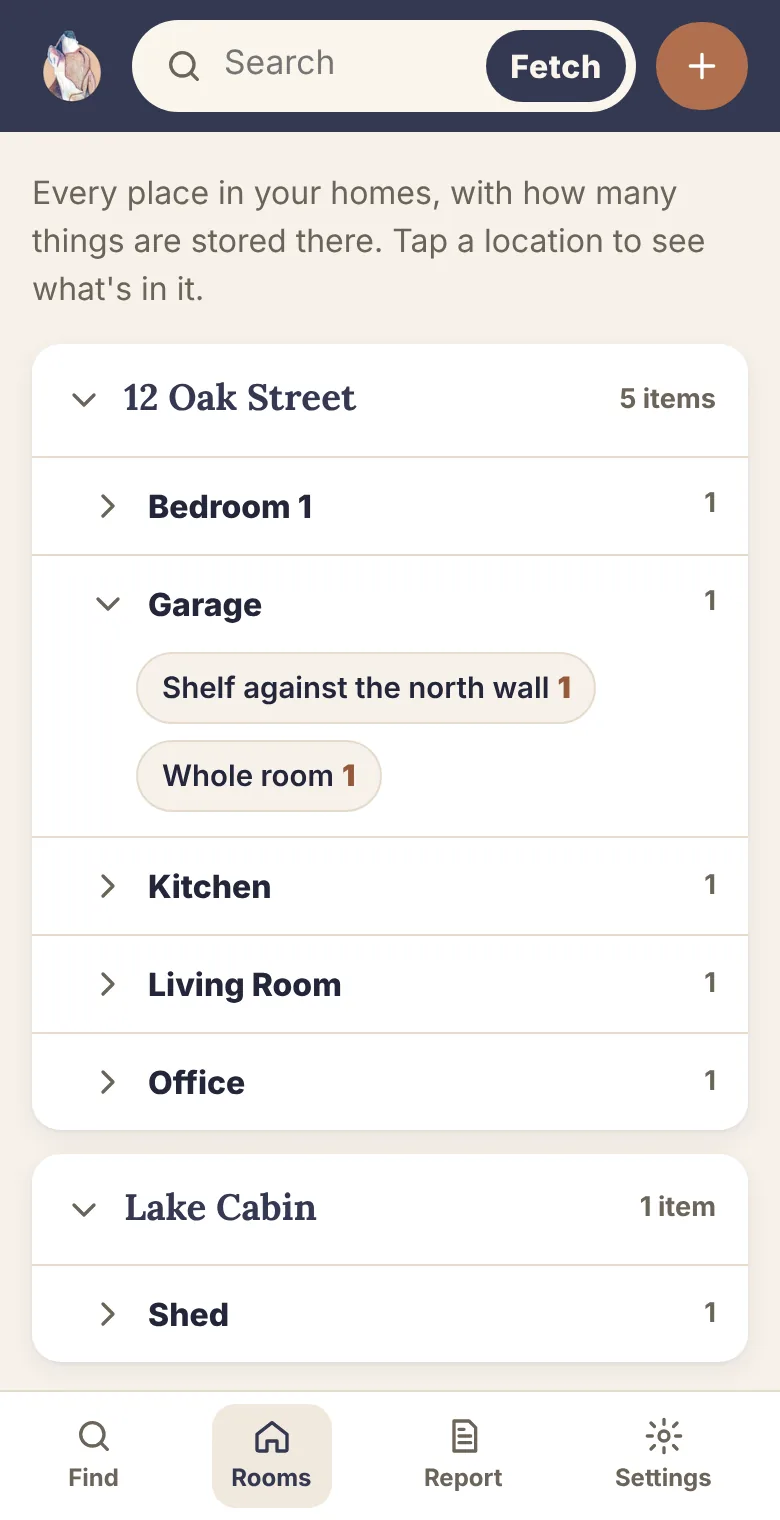
The Rooms tab shows every home, its rooms, and the locations in each room, with how many items are in each. Tap a room to open it, then tap a location to see exactly what's stored there. Whole room shows everything in that room.
9. The Report (for insurance)
The Report tab totals the value of everything you've recorded, by home and by room, with a grand total. Items without a value count as $0.
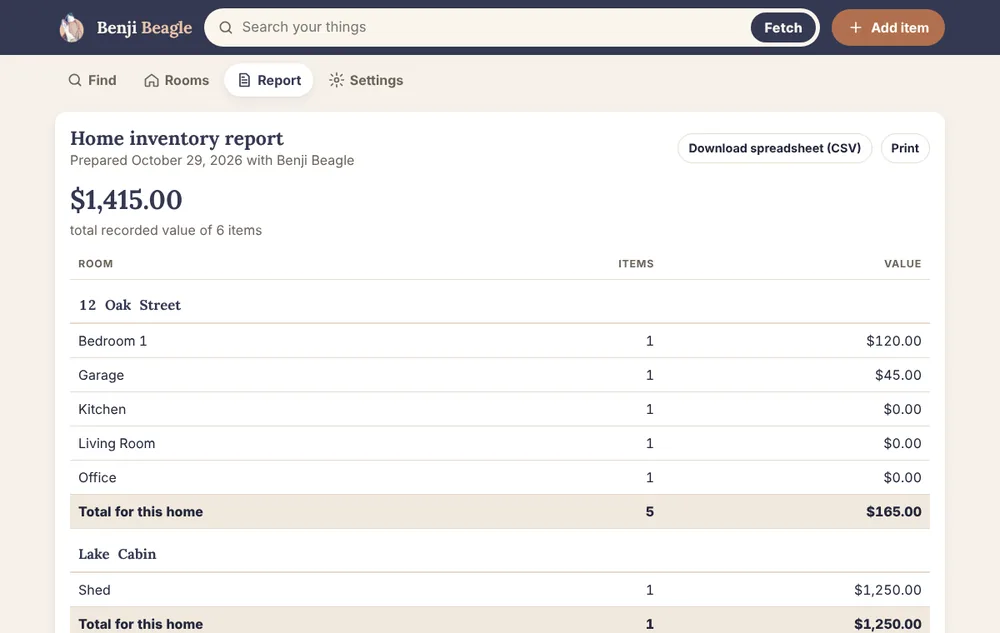
- Itemized list: tap to see every item with where it is and its value.
- Download spreadsheet (CSV): saves your whole list as a file that opens in Excel, Google Sheets or Numbers.
- Print: prints the report, including the itemized list. To make a PDF, choose "Save as PDF" in the print window.
10. Benji on your phone
On your phone, open armchairworks.com/benji/app, enter your access key, and choose the same place you chose on your computer (the same Google account or Dropbox). Your list appears, the same as on your computer.
Put Benji on your home screen
For a one-tap Benji button among your apps:
- iPhone or iPad (Safari): tap the Share button (a square with an arrow), then Add to Home Screen, then Add.
- Android (Chrome): tap the ⋮ menu, then Add to Home screen or Install app. Benji's Settings may also show an Install Benji button.
- Computer (Chrome or Edge): look for the install icon at the right end of the address bar, or Settings › Install Benji on this computer.
Benji then opens in its own window, with no browser bars, and its beagle icon.
11. Using more than one device
Your whole household can use Benji on all of its computers and phones, as long as everyone chooses the same Google Drive or Dropbox account.
- When you switch back to Benji, it checks for changes made on your other devices and brings them in. You'll see Updated with changes from your other device.
- To check right away, go to Settings › Check for changes now.
- If two devices save at the same moment, Benji combines both sets of changes instead of overwriting one. If the same item was changed on both, the most recent change is kept.
12. Settings
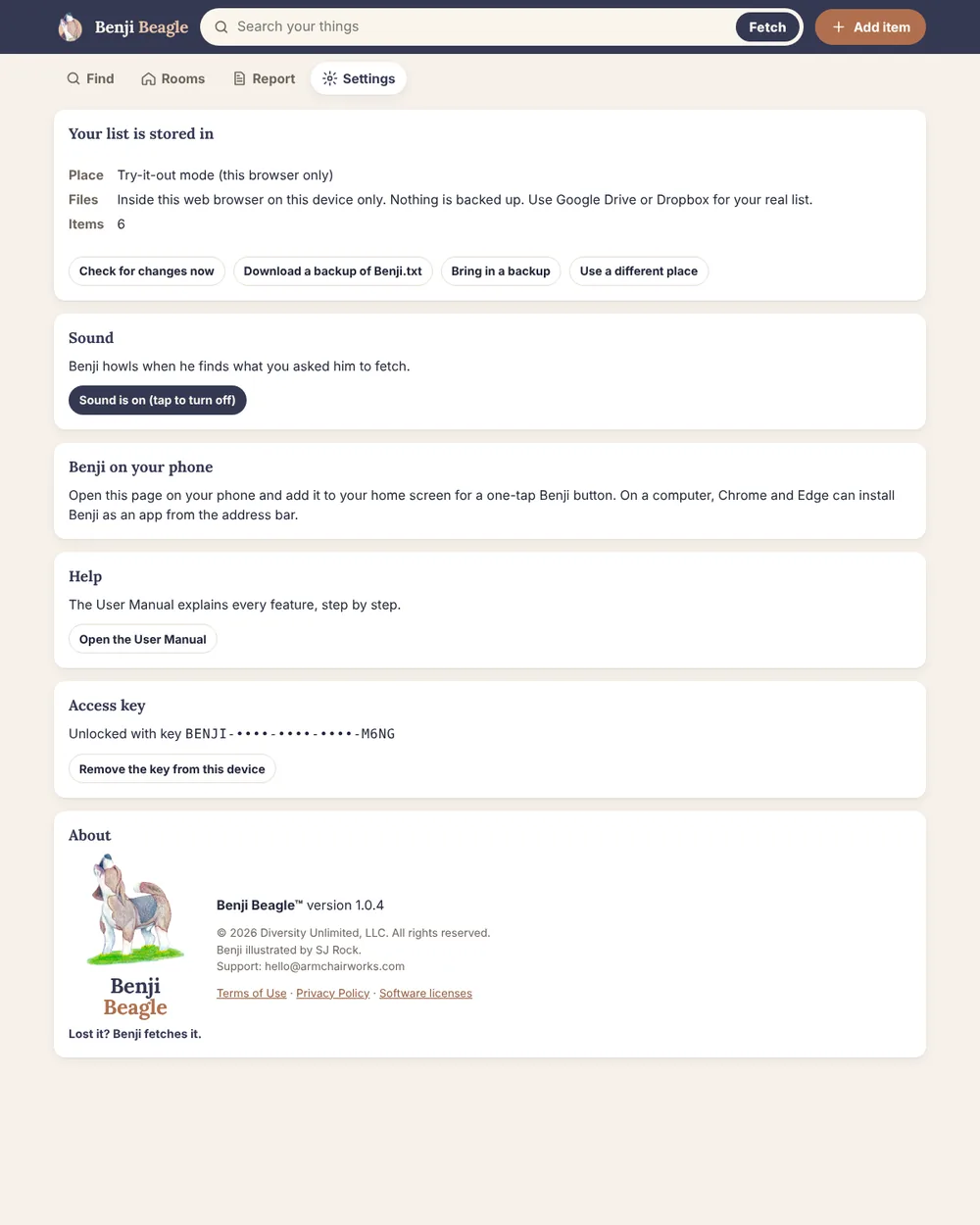
| Setting | What it does |
|---|---|
| Your list is stored in | Shows where your list lives and how many items it holds. |
| Check for changes now | Brings in changes made on your other devices right away. |
| Download a backup of Benji.txt | Saves a copy of your list (without photos) to your computer or phone. See Your files and backups. |
| Bring in a backup | Adds the items from a Benji.txt or a Benji backup file into your current list. Use it to restore a backup, or to move a try-it-out list into Google Drive or Dropbox: download a backup while in try-it-out mode, switch to your new place, then bring it in. Items already in your list aren't duplicated. Photos aren't included in a backup. It also reads lists from the original Benji program (the ID|House|Room|Closets|Cupboards|Box|Items… format); Closets, Cupboards and Box become the item's Location. |
| Use a different place | Disconnects from the current place and shows the choices again. Your files stay where they are. |
| Sound | Turns Benji's howl on or off. On iPhones, the silent switch may also keep him quiet. |
| Benji on your phone | Instructions, and an install button where your browser offers one. |
| Help | Opens this manual. |
| Access key | Shows the end of your key. Remove the key from this device locks Benji on this device (for example, before you sell or give away a phone). Your list isn't deleted. |
| About | Version, copyright, and links to the Terms of Use, Privacy Policy and software licenses. |
13. Your files and backups
Benji.txt is a plain text file with one item per line. You can open it in any text editor, so your list is never locked inside Benji. Photos are ordinary JPEG pictures in the BenjiPics folder, named after the item's ID (shown at the bottom of each item's details), like B7K2M9QX-1.jpg.
- Backups: Google Drive and Dropbox keep your files safe and keep earlier versions. For extra peace of mind, use Settings › Download a backup of Benji.txt now and then, and keep the copy somewhere else.
- Moving the Google Drive folder: you can move the Benji Beagle folder anywhere in your Drive; Benji still finds it. Don't rename Benji.txt or BenjiPics.
- Editing Benji.txt by hand is possible but not recommended. If you do, close Benji first, and keep a backup. If a line gets damaged, Benji keeps it as it is rather than deleting it.
14. Troubleshooting
| What you see | What to do |
|---|---|
| "Benji couldn't start" | Reload the page. Make sure your browser is up to date (Chrome, Edge, Safari or Firefox). Very old phones and browsers can't run Benji. |
| "That key wasn't recognized" | Check the key against your purchase email or your Payhip order page. If it still won't work, email us. |
| "Benji can't reach its website to check the key" | Check your internet connection and try again. Once your key is accepted on a device, Benji keeps working for a while even when you're offline. |
| Google Drive window doesn't open | Your browser blocked the pop-up. Allow pop-ups for armchairworks.com, then tap Google Drive (or Open my Benji list) again. |
| "Google hasn't verified this app" | Tap Advanced, then Go to Benji Beagle. |
| "Your Dropbox sign-in has expired" | Go to Settings › Use a different place, choose Dropbox, and sign in again. |
| The status tag says "Not saved" | Benji couldn't reach your Google Drive or Dropbox, usually because the internet dropped. Your change is kept on screen; it's saved the next time Benji saves successfully, such as when you make your next change. To be sure, check your connection and tap Settings › Check for changes now. |
| My phone doesn't show what I added on my computer | Make sure both are using the same place and the same Google or Dropbox account (Settings › Your list is stored in). Then tap Check for changes now. |
| Photos don't appear | Photos load from your Google Drive or Dropbox, so they need an internet connection. On a slow connection, give them a moment. |
| No howl | Check that Settings › Sound is on and your device isn't muted. Benji only howls when he finds something. |
| Google Drive or Dropbox isn't offered | Reload the page. If it's still missing, email us. |
15. Questions and answers
Is my list private? Yes. Your list and photos go only to your own Google Drive, Dropbox or folder. They're never sent to us. With Google Drive, Benji can see only the files it created, nothing else in your Drive. See the Privacy Policy.
What happens if I stop using Benji? Your files stay in your Google Drive or Dropbox. Benji.txt is plain text and your photos are ordinary pictures, so you can always open them.
Can my family use it? Yes. One key covers one household on all of its devices. Everyone uses the same Google Drive or Dropbox account for the shared list.
Can I track more than one home? Yes. Use the Home Address box: your house, a cabin, a storage unit, your office. The Rooms view and the report separate them.
Is there a limit to how many items I can add? There's no set limit.
Can I use it without internet? Benji needs a connection to open your list and to save, since your list lives in your Google Drive or Dropbox.
Is there a monthly fee? No. Benji is a one-time purchase.
16. Getting help
If something isn't working as this manual describes, email hello@armchairworks.com. Tell us what you were doing, what you expected, and what happened instead; a screenshot helps a lot.
Benji Beagle™ © 2026 Diversity Unlimited, LLC. All rights reserved. Benji illustrated by SJ Rock. Use of Benji is governed by the Terms of Use.